
Band Portal guide
Post to your fans
A post goes straight to everyone who follows your band, and they get a notification. Here's how to write one, change it, and see who's following.
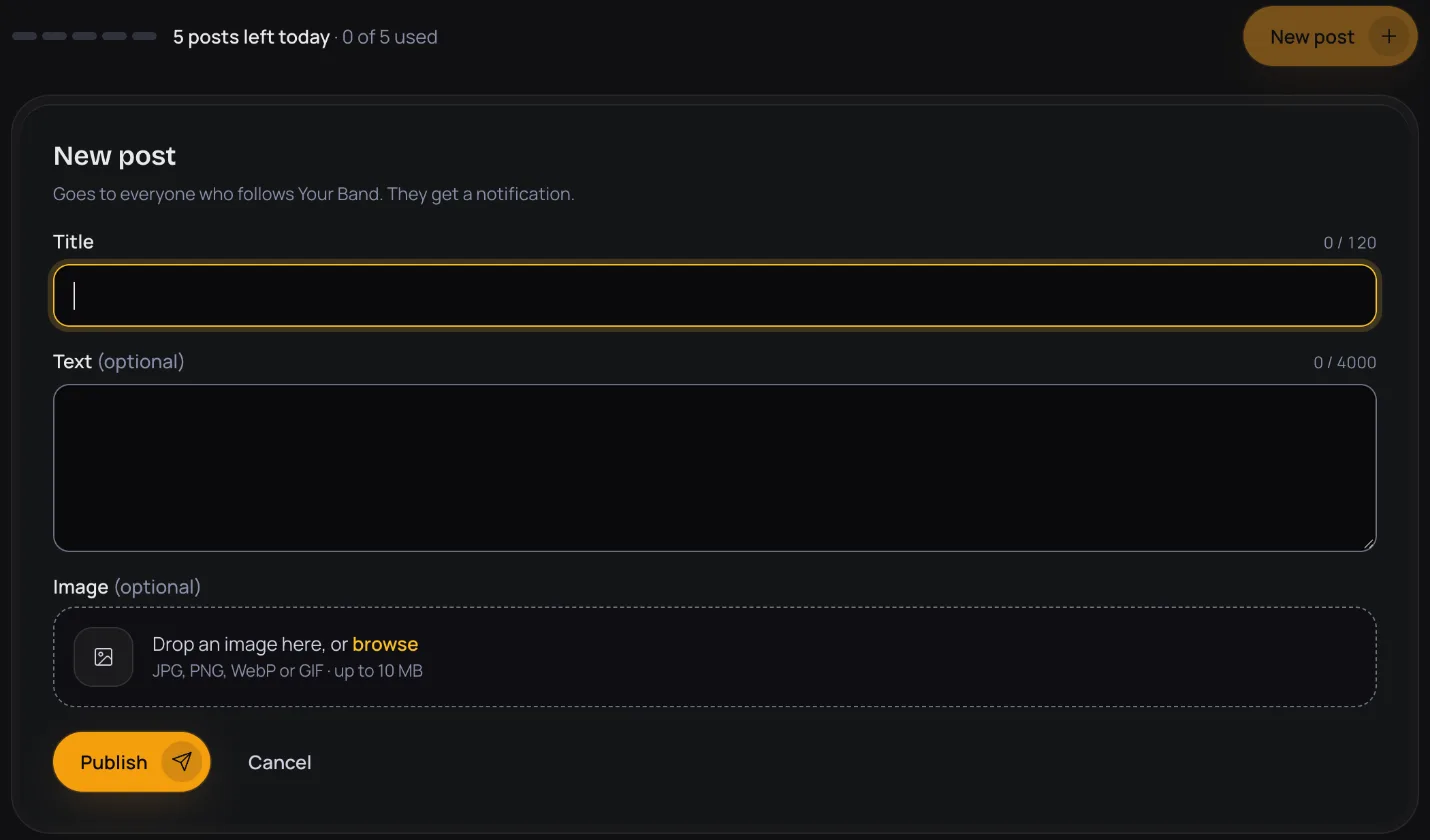
Write and publish a post
- Open your band and go to the Posts tab. You can also press New post on your band's card in My bands.
- Press New post. It goes to everyone who follows your band, and they get a notification.
- Fill in a Title, up to 120 characters. Add Text if you like, up to 4,000 characters, and an Image: JPG, PNG, WebP or GIF, up to 10 MB.
- Press Publish. The post is live at once. There's no review.
Your posts are listed under Published, each with its date, views, likes and comments. Press Show older posts to see more.
Change a post
Press Edit on a post, make your changes and press Save changes. Saving changes doesn't notify fans again.
Hide a post
Press Hide on a post, then Hide post to confirm. Fans won't see it anymore.
How many posts you can send
Each band can publish 5 posts in 24 hours. The meter at the top of the Posts tab shows how many you have left today.
See who follows your band
The Stats tab shows your Followers: the people who follow your band. They see your posts in their feed and get a notification each time you publish. The number updates every few minutes.
Post an update on the Stats tab opens a new post straight away.
All guide pages
Ready to start?
Find your band and send a claim, or add it if it isn't on The Band Index yet. It's free.