
Band Portal guide
List your shows
Add your concerts and other events, link your Ticketmaster artist, and take shows that aren't yours off your page.
Add a show
A show you add goes live on your band page, and on the page of every band on the bill, as soon as you publish it.
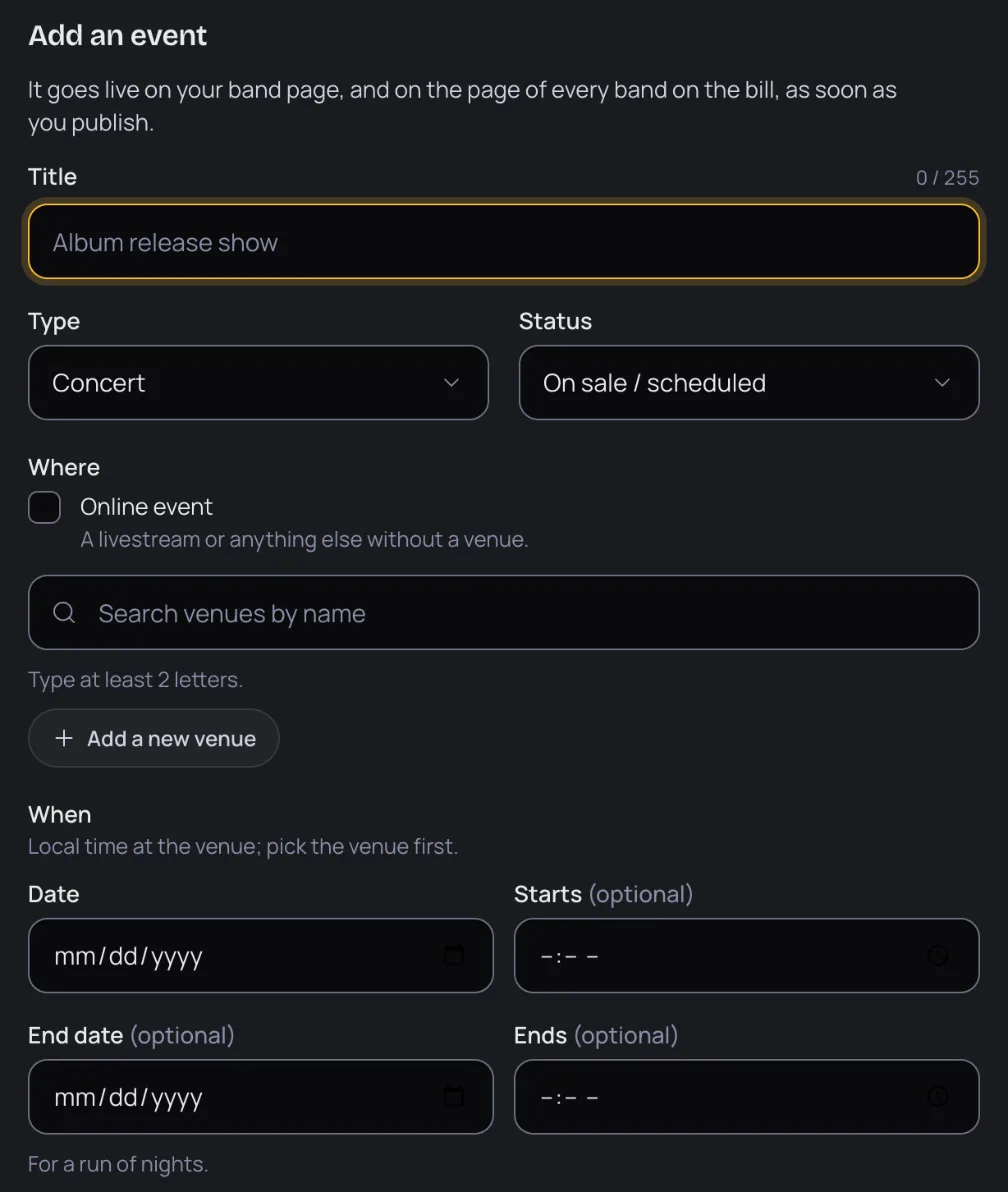
- On your band's Events tab, press Add an event.
- Fill in the Title and choose the Type: Concert, Release party, Signing, Livestream or Other.
- Choose the Status: On sale / scheduled, Sold out, Postponed or Cancelled.
- Pick the venue: search for it by name, or add it if it isn't there yet (below). For a stream, choose Online event instead, then add the Stream link and the Time zone.
- Set the Date and the time it Starts. For a run of nights, add an End date.
- Under Bill, add the other bands that play, each as Headliner, Support, Special guest or Host.
- Set the price: Free entry, or a range and its Currency.
- Add your Ticket links, up to 20.
- If you like, add a Poster (JPEG, PNG or WebP, up to 10 MB) and a Description (up to 5,000 characters).
- Press Publish event. It's live at once.
Add a venue that isn't listed
- Press Add a new venue.
- Fill in the Venue name, City, Country and Street address.
- Press Find it on the map. If the map can't find it, press Place the pin myself and put the pin on the venue.
- Check the pin, then press Confirm location and add venue.
Shows with other bands
A show appears on the page of every band on its bill. On their Events tab it's marked as coming from your band, and only your band can change it. In the same way, a show another band adds with you on the bill shows up on your page.
Which shows you can change
Your Events tab lists Upcoming and Past shows. Shows you added carry the badge Yours, and only those can be edited or removed. Shows from Ticketmaster, from another band or from The Band Index are marked with where they came from, and are locked.
Link your Ticketmaster artist
- On the Events tab, press Connect Ticketmaster.
- Type your band's name as it appears on Ticketmaster, then press Choose next to your artist.
- Check the preview of upcoming shows. Make sure it's your band: linking someone else's artist puts their shows on your page.
- Press Link this artist. Its shows appear on your band page and stay in sync.
Take a show that isn't yours off your page
Open the show's menu and choose Not our show. It comes off your page, and the other bands on the bill keep it. It moves to Hidden from your page, where Show again brings it back.
Festival sets work the same way: Not our set takes a set off your page, and Show brings it back. The festival's line-up stays as it is. To fix the festival's own details, email support@thebandindex.com.
All guide pages
Ready to start?
Find your band and send a claim, or add it if it isn't on The Band Index yet. It's free.